
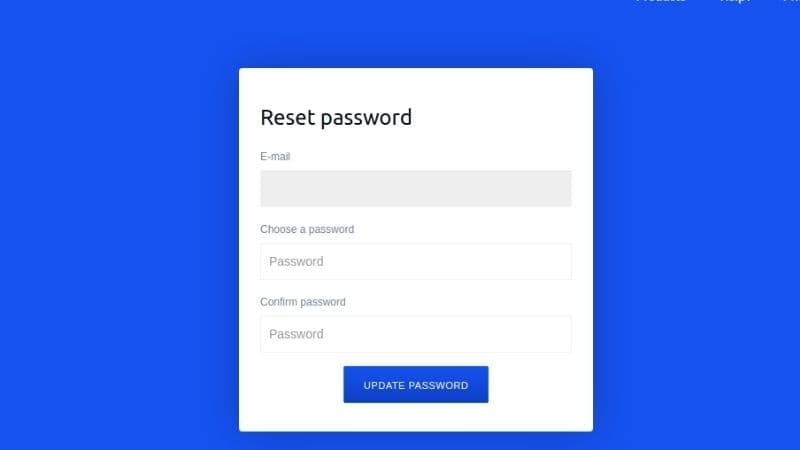
You want to change Coinbase password but don't know how to do that. So, in this article, we will discuss how to change the Coinbase password. However, what needs to be considered is, when you want to change Coinbase password, you also have to remember the password to enter your Coinbase account.
If you forgot your Coinbase account login password, it means you have to reset your password and create a new password for your account. These are two different cases. Therefore, later will be discussed about how to change your Coinbase account password.
Coinbase is called a popular cryptocurrency platform because it has an intuitive and beginner-friendly interface. As a cryptocurrency trading platform, users can buy, manage and sell their cryptocurrencies. Users can easily buy cryptocurrency with a bank account or debit card.
Coinbase also provides a digital wallet service that users can use to store various crypto assets, including NFTs. Not only that, users can also find various features to help investors learn about various types of cryptocurrencies at Coinbase.
How To Change Coinbase Password
Changing your Coinbase account password periodically is perfectly fine, it's a good thing to do. This may be done, for example, to prevent your account from being hacked by brute-force attacks by hackers. If your password is also weak, you better change your password immediately for the good and security of your account.
In the following, you will find out how to change your Coinbase account password.
1. Login to your Coinbase account
The first step in how to change Coinbase password is to open the Coinbase website, then enter your Coinbase account by clicking the "Sign In" menu icon. You can also change your Coinbase account password via the Coinbase app on mobile, but the user interface will be slightly different from the one described in this article as this is via a computer or desktop.
After you enter the "Sign In" menu, immediately enter your Coinbase account email address and password. Then, click "Sign In" and wait until you are logged in to your account homepage.
Note. You must remember the password to enter your account when you want to change your Coinbase account password because if you forget it, you cannot log into your account and cannot set settings to change your password.
2. Click and enter Menu option
The next step after you log in to your Coinbase account, you will be taken to the homepage of the site on your account. On this homepage, you will see a menu icon on the top right of the page.
Then, click on that menu icon.
After you click on the menu icon, you will be taken to various settings options. This will take you to the next step.
3. Click on the Settings option
Then, after you enter on the menu page, you will find several options such as Home, Prices, Portfolio, and others. Scroll down the screen until you find options, including Settings, Reports, Help, and Sign Out.
To change Coinbase password, click on the Settings option so that you will then enter the settings menu.
4. Click on the Change Password option
After you click on the Settings option earlier, you will enter the settings page. There, you can view your account information. Find the Change Password option under your account profile photo to change the password.
5. Change your Password
After you click the Change Password option, you will enter a page to change your password. There are three fields that you must fill in, namely the Old Password field, New Password field, and Confirm new password field. To change the Coinbase password, you must fill in all of these fields.
Write down your old password that you want to change in the Old Password field. Next, write down the new password you chose in the New Password field. Take note! This new password must be different from the old password. It is also recommended that your new password is stronger than before. Finally, rewrite the new password of your choice in the Confirm new password field. That's to make sure you typed in the new password correctly.
6. Fill in the 2 step Verification Code
Once you have filled in all the fields correctly, scroll down to the bottom of the page until you see the 2-step verification code field. Check the incoming message on your phone to enter the 7-digit code field, then enter the code from the message into the 2-step verification code field below the new password field that you filled in correctly.
After entering a valid 7 digit code, you can click the Confirm option to actually change your Coinbase password. After confirmation, you will be logged out of your account, but you don't need to worry because you can simply log back into your account using the new password.
If you followed all the steps above, you have successfully change Coinbase password.
Read Also: How to Add Cronos to Metamask
Conclusion
Coinbase is a trading platform as well as a crypto wallet from the United States which was launched in June 2012. The Coinbase platform was founded by Brian Armstrong, a former AirBNB engineer, and Fred Ehrsman, a former trader at US investment bank Goldman Sachs. Under their leadership, Coinbase managed to provide the best service for traders. Before you can use the Coinbase, you must first register and create a Coinbase account.
Coinbase has the convenience of creating an account, as well as managing changes to your Coinbase account password. Just follow the steps described above, you can change your password anytime. Changing the account password is important enough to keep your account secure from the possibility of account hacking by hackers. It is also recommended that you change your password regularly.
Also make sure that you always remember the password that you change. However, when you forget your account password, you can reset the password with the email that you linked to your Coinbase account.
That's an article about change Coinbase password that you can easily follow the steps above.